Hostinger SMTP Settings
Budget web host that runs three separate email products under one hPanel login
Search for your email provider
Outgoing mail (SMTP)
SMTP server
smtp.hostinger.com
Port. STARTTLS
587
Port. SSL/TLS
465
Security
SSL/TLS on 465 (recommended) or STARTTLS on 587.
Incoming mail (IMAP)
IMAP server
imap.hostinger.com
Port. SSL/TLS
993
Incoming mail (POP3)
POP3 server
pop.hostinger.com
Port. SSL/TLS
995
Sending limits & login
Daily send limit
Per-plan hourly and daily send limits apply.
Authentication
Sign in with your full email address and the mailbox password you set in hPanel.
App password
No app password. Reset the mailbox password in hPanel > Emails if sign-in fails.
These are for Hostinger Email. Titan was Hostinger's mail platform before it built its own, so many older accounts still need imap.titan.email, pop.titan.email and smtp.titan.email. Mailboxes on legacy cPanel hosting use the settings shown in that control panel. Check which you have under Emails in hPanel.
Sending cold email? EmailChaser manages inboxes, warmup and deliverability for you.
Try EmailChaser freeFind the SMTP, IMAP and POP3 server settings for any email provider. Free, with no signup, every field copies with one click.
Hostinger SMTP, IMAP and POP3 settings
Hostinger is a budget web host that also sells mailboxes, and it runs three different email products: Hostinger Email on its own hostinger.com servers, cPanel Email on cPanel plans, and resold Titan mailboxes. The hostnames differ for each, so check which one you bought before typing settings. Hostinger also issues per-app passwords from hPanel.
For incoming mail, use the IMAP server imap.hostinger.com on port 993, or POP3 at pop.hostinger.com on port 995. Pick the exact values from the tool above and copy them straight into your mail client.
Checked against Hostinger's own documentation: hostinger.com. Ports and limits change, so check there too if something will not connect.
Hostinger settings at a glance
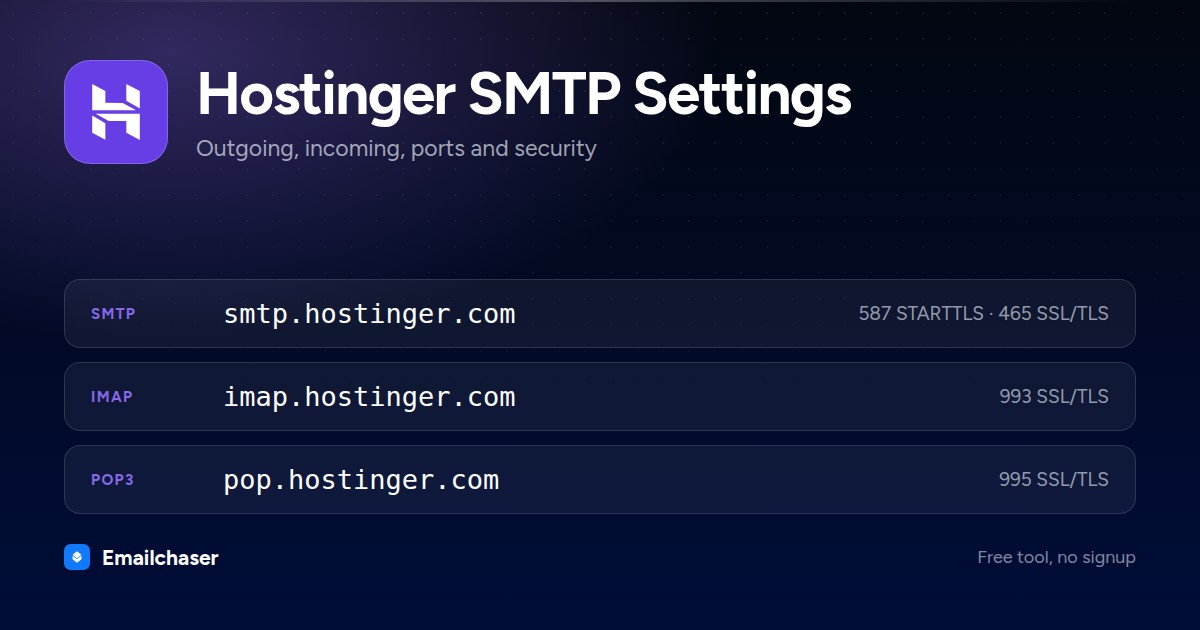
One card with every server and port on it. Right click to save it, or share the page and this is the preview people see.
What to enter as your Hostinger username and password
Wrong credentials, not a wrong port, are the usual reason a Hostinger connection fails. These are the exact values to type.
Your full mailbox address, for example you@yourdomain.com
How to set up Hostinger in a mail client
The exact path through Hostinger's own settings, in order.
- 1
Check which Hostinger email product you have
In hPanel open the Emails section and look at the product listed next to your domain. Hostinger Email, cPanel Email and Titan use completely different servers.
- 2
Open Connect Apps & Devices in hPanel
Go to hPanel > Emails, click Manage next to your domain, then choose Connect Apps & Devices in the sidebar to see the settings for your own mailbox.
- 3
Generate an app password for the mail app
In hPanel > Emails > your domain > Mailboxes, click the Options (three dots) button next to the mailbox, choose App passwords, then Generate. The password is shown once and cannot be read again.
- 4
Enter the incoming server
imap.hostinger.com on port 993 with SSL, or pop.hostinger.com on port 995 with SSL.
- 5
Enter the outgoing server
smtp.hostinger.com on port 465 with SSL. If the client reports an encryption problem, Hostinger tells you to switch to port 587 with TLS or STARTTLS.
What Hostinger looks like filled in
Every mail client asks for the same handful of fields. Here they are with Hostinger's values already in place.
Account settings: Hostinger
Server
smtp.hostinger.comPort
465Encryption
SSL/TLSAuthentication
RequiredUsername
Your full mailbox address, for example you@yourdomain.comPassword
Your mailbox password, or an app password generated in hPanelServer
imap.hostinger.comPort
993Encryption
SSL/TLSAn illustration of the fields, not a screenshot of any one app. Field names differ slightly between Outlook, Apple Mail and Thunderbird; the values do not.
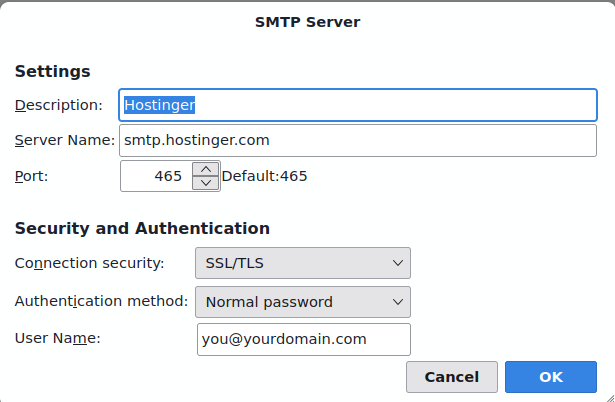
Hostinger SMTP settings in Thunderbird
The outgoing server dialog with Hostinger's details entered. Outlook and Apple Mail ask for the same four things under slightly different names.
Which port should you use for Hostinger?
SSL/TLS on 465 (recommended) or STARTTLS on 587.
STARTTLS
Starts as a plain connection, then upgrades to an encrypted one. The modern standard for sending.
SSL/TLS
Encrypted from the first byte. Widely supported and a good choice when 587 is blocked.
Plain SMTP
Meant for server-to-server relay. Home networks and cloud hosts block it, so do not use it to send from a client.
Why your Hostinger connection is failing
The failures people actually hit with Hostinger, and what fixes each one.
Hostinger's own configuration article says to switch that account to port 587 with TLS or STARTTLS instead of 465 with SSL.
Unauthenticated PHP mail() on Hostinger hosting is capped at 10 per minute and 100 per day. Send through an SMTP plugin authenticated as your mailbox so the mailbox limits apply instead.
Free and trial Hostinger mailboxes allow 100 sent messages per rolling 24 hours. Business Starter raises that to 1000 and Business Premium to 3000.
Check you are using the servers for the product you actually bought: Hostinger Email uses imap.hostinger.com, resold Titan mailboxes use imap.titan.email, and cPanel Email uses the names shown in cPanel's Connect Devices screen.
Hostinger displays an app password once. Delete the old entry under Mailboxes > Options > App passwords and generate a replacement.
Hostinger sending limits
Counted per mailbox over a rolling 24 hours, with sent and received counted separately.
Per day
1000 sent per mailbox on Business Starter, 3000 on Business Premium, 100 on free and trial plans
Recipients per message
100 across To, Cc and Bcc
Max attachment
25 MB of attachments, 35 MB total outgoing message size
Compare all 51 providers' sending limits in one table with a source link and a confidence rating for each.
Hostinger servers by region and plan
Hostinger does not use one set of hostnames everywhere. Match the row to your account.
| Region or plan | SMTP | IMAP | POP3 |
|---|---|---|---|
| Titan Email bought through Hostinger | smtp.titan.email | imap.titan.email | pop.titan.email |
Hostinger quirks by mail client
Apple Mail
hPanel can push a ready-made profile to Apple devices from Emails > Connect Apps & Devices > Apple auto-configuration > Set up Apple devices.
Sending cold email through Hostinger
Per-plan hourly and daily send limits apply. Sign in with your full email address and the mailbox password you set in hPanel.
Those caps make single-mailbox sending fine for personal mail but a poor fit for cold outreach at volume. Emailchaser spreads sending across warmed inboxes and manages deliverability, so you can scale without burning Hostinger accounts.
A new Hostinger mailbox also starts with no sending history, and hitting the cap above on its first day is what gets it filtered. Warm the mailbox up first so its daily volume climbs gradually toward that limit rather than starting at it. Emailchaser includes that ramp on every plan. Run each address through the free email checker before a send too, so bounces don't hurt the new mailbox.
Other business email and web hosting
Setting up more than one mailbox? These sit in the same category as Hostinger.


Common questions about Hostinger SMTP settings
What are Hostinger's SMTP settings?
Hostinger's outgoing (SMTP) server is smtp.hostinger.com. Use port 587 (STARTTLS) or 465 (SSL/TLS). SSL/TLS on 465 (recommended) or STARTTLS on 587. Sign in with your full email address and password (or app password).
What is Hostinger's IMAP or POP3 server?
Hostinger's incoming IMAP server is imap.hostinger.com on port 993 (SSL/TLS). If you prefer POP3, use pop.hostinger.com on port 995.
Which port should I use for Hostinger?
Use port 587 with STARTTLS wherever it's offered, it's the modern standard for authenticated sending. Port 465 with SSL/TLS is a solid alternative. Avoid port 25, which most networks block for client sending. Hostinger's recommended value is above.
Why won't my Hostinger SMTP connection work?
Check authentication first: Sign in with your full email address and the mailbox password you set in hPanel. No app password. Reset the mailbox password in hPanel > Emails if sign-in fails. Then confirm the host, port and security method match exactly, a 587/SSL or 465/STARTTLS mismatch will fail to connect.
Can I send bulk or cold email through Hostinger?
Not at scale. Per-plan hourly and daily send limits apply. Providers throttle bursts to fight spam, so pushing cold email through one mailbox hits limits and wrecks deliverability. High-volume outreach belongs on dedicated infrastructure that spreads sending across warmed inboxes, which is what Emailchaser does.
How do I know if I have Hostinger Email, cPanel Email or Titan?
Open the Emails section of hPanel and read the product name next to your domain. Hostinger Email is the in-house service on imap.hostinger.com and smtp.hostinger.com. cPanel Email comes with cPanel hosting plans and takes its server names from cPanel. Titan is a separate product Hostinger resells, with its own titan.email servers.
Do I need an app password, or is my normal mailbox password enough?
A normal mailbox password still works for most setups. App passwords exist so a phone, script or integration can hold a credential you can revoke on its own without changing your main password. You create one in hPanel under Emails > Mailboxes > Options > App passwords, and you can delete any single one later without breaking the others.
Why do my WordPress emails stop sending after a while on Hostinger?
Hostinger limits mail sent by unauthenticated PHP scripts to 10 per minute and 100 per day, which a busy contact form or store passes quickly. The fix is to configure an SMTP plugin so WordPress logs in as one of your mailboxes. Your sending then counts against the mailbox plan limit instead, which is 1000 per day on Business Starter.
Ready to let your AI agent set it up?
Give it your website. Approve once.
Start my free trial