SiteGround SMTP Settings

Hosting that dropped cPanel for Site Tools, with a Mail Configuration page per mailbox
Search for your email provider
Outgoing mail (SMTP)
SMTP server
mail.yourdomain.com
Port. STARTTLS
587
Port. SSL/TLS
465
Security
SSL/TLS on 465 (recommended) or STARTTLS on 587.
Incoming mail (IMAP)
IMAP server
mail.yourdomain.com
Port. SSL/TLS
993
Port. STARTTLS
143
Incoming mail (POP3)
POP3 server
mail.yourdomain.com
Port. SSL/TLS
995
Port. STARTTLS
110
Sending limits & login
Daily send limit
SiteGround caps shared hosting at roughly 400 messages per hour per account.
Authentication
Sign in with your full email address and the mailbox password you set in Site Tools.
App password
No app password. Reset the mailbox password under Site Tools > Email > Accounts.
Replace yourdomain.com with your own domain. Site Tools > Email > Accounts > Manual Settings shows the exact hostname for your server.
Sending cold email? EmailChaser manages inboxes, warmup and deliverability for you.
Try EmailChaser freeFind the SMTP, IMAP and POP3 server settings for any email provider. Free, with no signup, every field copies with one click.
SiteGround SMTP, IMAP and POP3 settings
SiteGround replaced cPanel with its own Site Tools panel, so mail settings live under Email > Accounts rather than in a cPanel screen. Its mail servers answer on your own domain name, which is why switching on the SiteGround CDN can break a working mail client until you move it to mail.yourdomain.com. SiteGround also opens port 2525 for outgoing mail.
For incoming mail, use the IMAP server mail.yourdomain.com on port 993, or POP3 at mail.yourdomain.com on port 995. Pick the exact values from the tool above and copy them straight into your mail client.
Checked against SiteGround's own documentation: siteground.com. Ports and limits change, so check there too if something will not connect.
SiteGround settings at a glance
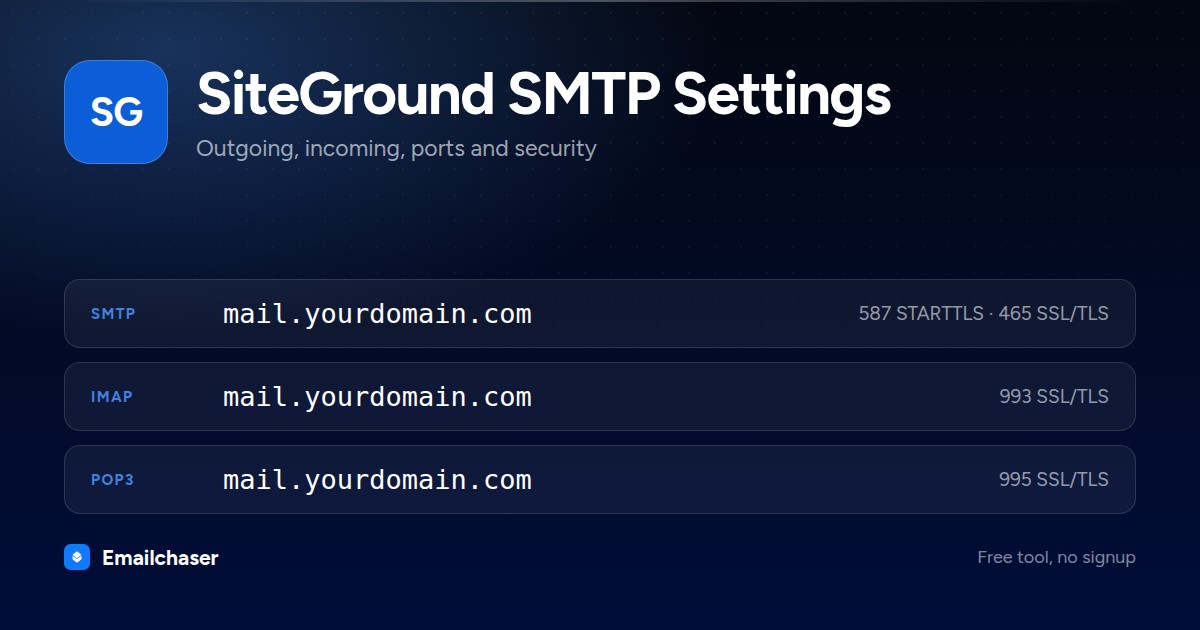
One card with every server and port on it. Right click to save it, or share the page and this is the preview people see.
What to enter as your SiteGround username and password
Wrong credentials, not a wrong port, are the usual reason a SiteGround connection fails. These are the exact values to type.
Your full email address in lower case, for example you@yourdomain.com
How to set up SiteGround in a mail client
The exact path through SiteGround's own settings, in order.
- 1
Open Mail Configuration in Site Tools
Site Tools > Email > Accounts, find the address, open the kebab (three dot) menu and choose Mail Configuration.
- 2
Copy the server names from the Manual Settings tab
The Manual Settings tab prints the exact incoming and outgoing hostnames for your account. Copy them rather than guessing, since a hand-typed name causes certificate warnings.
- 3
Enter the incoming server
IMAP on port 993 or POP3 on port 995, both over SSL/TLS, with your full email address in lower case as the username.
- 4
Enter the outgoing server
SMTP on port 465 with SSL, or 587 with STARTTLS. Turn on outgoing authentication and use the same full address and password.
- 5
Using SiteGround CDN? switch the server name
Create the subdomain under Site Tools > Domain > Subdomains, issue a Let's Encrypt Wildcard certificate under Site Tools > Security > SSL Manager, then change both server fields in the client.
What SiteGround looks like filled in
Every mail client asks for the same handful of fields. Here they are with SiteGround's values already in place.
Account settings: SiteGround
Server
mail.yourdomain.comPort
465Encryption
SSL/TLSAuthentication
RequiredUsername
Your full email address in lower case, for example you@yourdomain.comPassword
The mailbox password set in Site Tools > Email > AccountsServer
mail.yourdomain.comPort
993Encryption
SSL/TLSAn illustration of the fields, not a screenshot of any one app. Field names differ slightly between Outlook, Apple Mail and Thunderbird; the values do not.
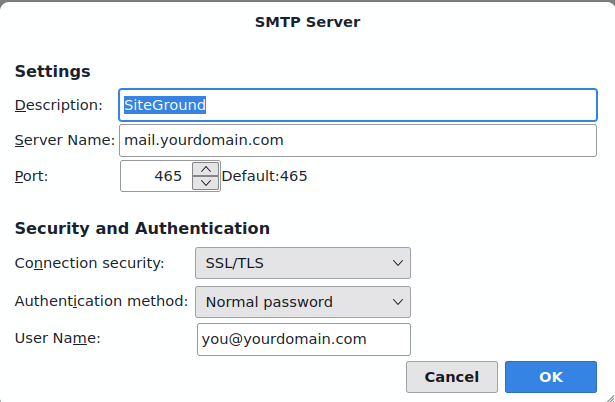
SiteGround SMTP settings in Thunderbird
The outgoing server dialog with SiteGround's details entered. Outlook and Apple Mail ask for the same four things under slightly different names.
Which port should you use for SiteGround?
SSL/TLS on 465 (recommended) or STARTTLS on 587.
STARTTLS
Starts as a plain connection, then upgrades to an encrypted one. The modern standard for sending.
SSL/TLS
Encrypted from the first byte. Widely supported and a good choice when 587 is blocked.
Plain SMTP
Meant for server-to-server relay. Home networks and cloud hosts block it, so do not use it to send from a client.
Why your SiteGround connection is failing
The failures people actually hit with SiteGround, and what fixes each one.
The CDN sits in front of your domain, which is also the mail server name. Create mail.yourdomain.com as a subdomain, get a Let's Encrypt Wildcard certificate in SSL Manager, then point the client at mail.yourdomain.com.
SiteGround's answer is that the SMTP port is being filtered or authentication is off. Tick SMTP authentication in Outlook and change the outgoing port from 25 to 2525.
That is a certificate name mismatch from a hostname that was typed by hand. Replace both server names with the ones shown in Site Tools > Email > Accounts > kebab menu > Mail Configuration.
SiteGround refuses a message addressed to more than 40 recipients, or 80 on GoGeek. Break the list into smaller sends.
StartUp, GrowBig, Ecommerce and Coderick plans allow 400 messages an hour, GoGeek and Cloud allow 800. Wait for the next hour or move the campaign to a sending service.
SiteGround sending limits
Limits are set per site, and a message over the recipient count is refused with a Too many recipients error rather than being queued.
Per hour
400 on StartUp, GrowBig, Ecommerce and Coderick, 800 on GoGeek and Cloud
Recipients per message
40 per message, 80 on GoGeek
Max attachment
50 MB of attachments outgoing, 80 MB incoming
Compare all 51 providers' sending limits in one table with a source link and a confidence rating for each.
Sending cold email through SiteGround
SiteGround caps shared hosting at roughly 400 messages per hour per account. Sign in with your full email address and the mailbox password you set in Site Tools.
Those caps make single-mailbox sending fine for personal mail but a poor fit for cold outreach at volume. Emailchaser spreads sending across warmed inboxes and manages deliverability, so you can scale without burning SiteGround accounts.
A new SiteGround mailbox also starts with no sending history, and hitting the cap above on its first day is what gets it filtered. Warm the mailbox up first so its daily volume climbs gradually toward that limit rather than starting at it. Emailchaser includes that ramp on every plan. Run each address through the free email checker before a send too, so bounces don't hurt the new mailbox.
Other business email and web hosting
Setting up more than one mailbox? These sit in the same category as SiteGround.


Common questions about SiteGround SMTP settings
What are SiteGround's SMTP settings?
SiteGround's outgoing (SMTP) server is mail.yourdomain.com. Use port 587 (STARTTLS) or 465 (SSL/TLS). SSL/TLS on 465 (recommended) or STARTTLS on 587. Sign in with your full email address and password (or app password).
What is SiteGround's IMAP or POP3 server?
SiteGround's incoming IMAP server is mail.yourdomain.com on port 993 (SSL/TLS). If you prefer POP3, use mail.yourdomain.com on port 995.
Which port should I use for SiteGround?
Use port 587 with STARTTLS wherever it's offered, it's the modern standard for authenticated sending. Port 465 with SSL/TLS is a solid alternative. Avoid port 25, which most networks block for client sending. SiteGround's recommended value is above.
Why won't my SiteGround SMTP connection work?
Check authentication first: Sign in with your full email address and the mailbox password you set in Site Tools. No app password. Reset the mailbox password under Site Tools > Email > Accounts. Then confirm the host, port and security method match exactly, a 587/SSL or 465/STARTTLS mismatch will fail to connect.
Can I send bulk or cold email through SiteGround?
Not at scale. SiteGround caps shared hosting at roughly 400 messages per hour per account. Providers throttle bursts to fight spam, so pushing cold email through one mailbox hits limits and wrecks deliverability. High-volume outreach belongs on dedicated infrastructure that spreads sending across warmed inboxes, which is what Emailchaser does.
Where do I find my exact SiteGround mail server name?
Go to Site Tools > Email > Accounts, open the kebab menu next to the address and choose Mail Configuration, then the Manual Settings tab. It lists the incoming and outgoing server names, ports and encryption for that specific account. Those values are the ones that match the server's certificate.
My email broke the day I turned on SiteGround CDN. Why?
The default mail server name is your domain, and the CDN takes over that name. SiteGround's fix is to create a mail.yourdomain.com subdomain, install a Let's Encrypt Wildcard certificate through SSL Manager, and change the incoming and outgoing servers in your mail client to mail.yourdomain.com.
Which outgoing port should I use if my provider blocks 25?
SiteGround opens 2525 as an alternative on shared servers, alongside 465 and 587 for encrypted connections. Try 465 with SSL first, then 587 with STARTTLS, and fall back to 2525 if a firewall or provider is filtering the others.
Ready to let your AI agent set it up?
Give it your website. Approve once.
Start my free trial